
Look
The fourth step is headed “Make it yours”. It holds the name and version, the accent colour, and three uploads: wallpaper, logo and an optional boot splash.
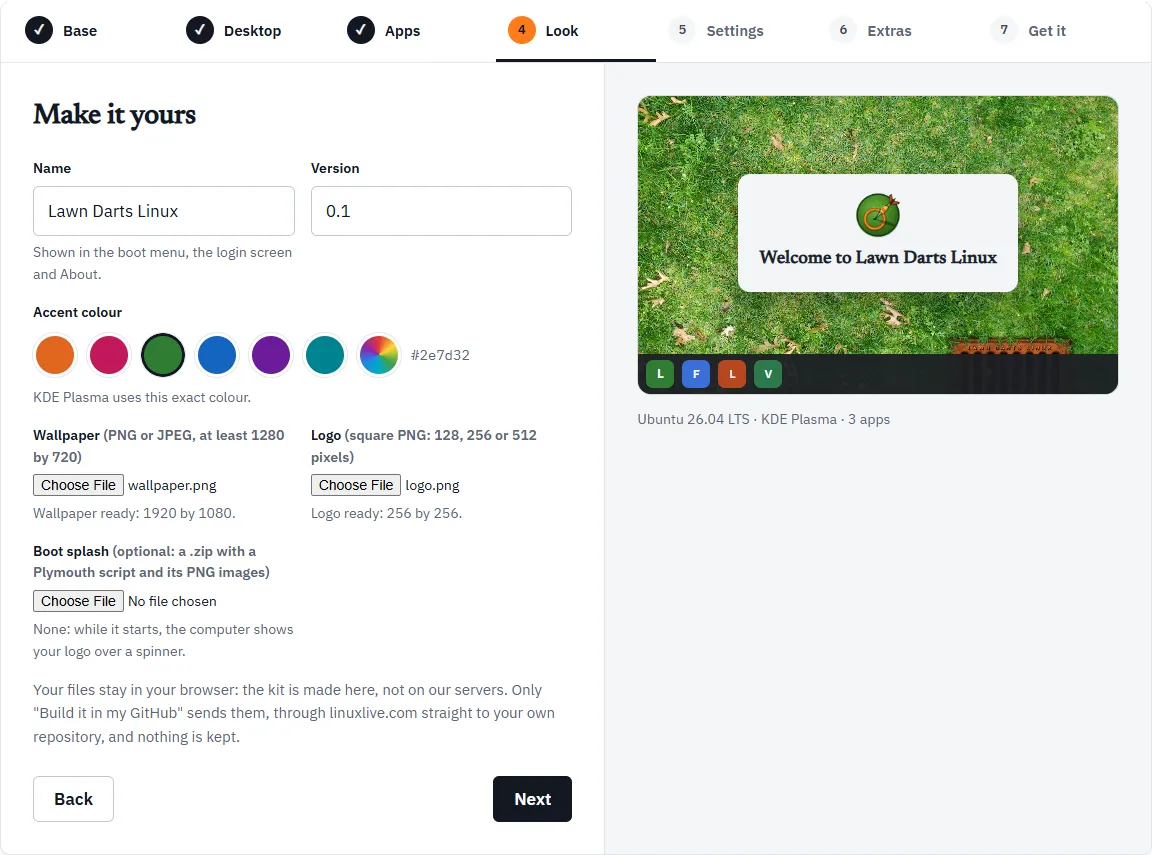
The name is shown in the boot menu, the login screen and About. It starts as My Distro.
The rules:
- letters, digits, spaces and
._+- - it starts with a letter or digit, and ends with a letter, digit or
+ - at most 40 characters
Break one and the help under the field says:
Names use letters, digits, spaces and . _ + -, start with a letter or digit, and stay under 40 characters.
An empty name gives “Give your distro a name.”
The id made from the name
Section titled “The id made from the name”linuxlive also makes a short id from the name: lower case, with each run of other characters turned into one dash. “My Distro 2” becomes my-distro-2. A name that starts with a digit gets os- in front, and the id stops at 30 characters.
The id is used for:
- the ISO’s file name
- the computer’s name on the network, unless you set one in Settings
- the name of the repository Build it in my GitHub makes, and of the kit’s folder
The id needs at least two letters or digits. A name too short for that gives “That name is too short to make an id from; use at least two letters or digits.”
When you open a distro you made before and rename it, it keeps its old id, so the ISO’s file name and the computer name stay the same. The help under the name says so.
Version
Section titled “Version”The version starts as 0.1. It can be up to 20 characters: letters, digits and . + ~ -, starting with a letter or digit. Otherwise you get “Versions look like 0.1 or 2026.10.”
When you open a distro again, the Workshop moves the version on by one for you. See Open and remix.
Accent colour
Section titled “Accent colour”Pick one of six colours (Orange, Pink, Green, Blue, Purple, Teal), or the rainbow swatch for any colour you like. The colour’s code, such as #e0661f, shows beside the swatches. Orange is picked to start with.
What happens to the colour depends on the desktop, and the help under the swatches tells you which:
| Desktop | What it does |
|---|---|
| GNOME | GNOME has nine accent colours of its own (blue, teal, green, yellow, orange, red, pink, purple and slate) and uses the nearest. The help names it, for example “uses the nearest: Orange.” Greys and very dark colours become Slate. |
| KDE Plasma | Uses this exact colour. |
| Cinnamon | Has no accent colour setting, so its theme keeps its own colours. |
Until you upload a wallpaper, the preview draws its stripes in your accent colour.
Wallpaper
Section titled “Wallpaper”A PNG or JPEG, at least 1280 by 720 pixels. Without one, the kit uses a striped placeholder.
When a file passes, the help says so with its size, for example “Wallpaper ready: 1920 by 1080.” When it does not, the Workshop does not take it and says why:
The wallpaper is 1024 by 768; it needs to be at least 1280 by 720.
The wallpaper must be a PNG or JPEG file.
JPEGs become PNGs
Section titled “JPEGs become PNGs”A JPEG wallpaper builds and boots fine. But the build’s last check looks for your wallpaper’s colour on the finished desktop, and that check reads PNGs only. So the Workshop turns a JPEG into a PNG for you, in your browser, before anything else:
- while it works, the help says “Turning the JPEG into a PNG…” and Get it lists “The wallpaper is still being turned into a PNG.”
- when it is done, the help ends with “It was a JPEG, so it is saved as a PNG: the build’s last check reads PNGs.”
- if the PNG would be over 20 MB, the Workshop scales it down, keeping its shape and at least 1280 by 720, and says it did
If the conversion fails, the Workshop keeps the JPEG and warns you: the distro builds and boots, but that last check fails. Save the picture as PNG yourself for a fully green build.
A square PNG of exactly 128, 256 or 512 pixels. Without one, the kit uses a placeholder logo.
Your logo shows in the boot splash, on GNOME’s login screen, as KDE Plasma’s launcher button and as Cinnamon’s menu button. Wrong files get one of:
The logo must be a PNG file.
The logo is 300 by 300; it needs to be square: 128, 256 or 512 pixels.
Boot splash
Section titled “Boot splash”The boot splash is what shows while the computer starts. Without one of your own, it is your logo over a spinner. The help says: “None: while it starts, the computer shows your logo over a spinner.”
To use your own, upload a .zip holding a Plymouth script and the PNG images it draws. Writing the script is covered in Boot splash.
What the zip must hold
Section titled “What the zip must hold”- Exactly one
.scriptfile. It can be anywhere in the zip. It must be a text file (UTF-8), at most 64 KB. - The PNG images it loads, up to 24. Folders are ignored: the script loads each image by its file name alone.
- Image names use letters, digits,
.,_and-, start with a letter or digit, and end in.png. - No image called
watermark.png. That name is taken: your logo is there aswatermark.png, so the script can draw it. - At most 8 MB in all, script and images together. The splash rides in the part of the system every boot loads first, so it has to stay small.
Other files in the zip are ignored, and so are macOS’s __MACOSX folders and files whose names start with a dot.
When the zip passes, the help says what it found, for example “Boot splash ready: a script and 6 images, 412 KB.” A Remove the splash button goes back to the logo and spinner.
When the zip is refused
Section titled “When the zip is refused”The Workshop does not take a zip that breaks a rule, and the help shows the first problem:
| Message | What to do |
|---|---|
| That is not a .zip file. | Upload a zip. |
| The zip has no .script file: a splash is a Plymouth script and its PNG images. | Add your script. |
| The zip has 2 .script files; a splash has one. | Keep one script. |
| The splash script must be a text file (UTF-8). | Save the script as plain UTF-8 text. |
| The splash script is … bytes; it can be at most 64 KB. | Shorten the script. |
| The splash has … images; at most 24. | Use fewer images. |
| watermark.png is the logo’s name in the splash: rename that image. | Rename it, and change the script to match. |
| Two splash images are called …. | Rename one. Folders do not keep them apart. |
| … is not a PNG. | Save it as a real PNG, not just renamed. |
| The splash is … MB; at most 8 MB. | Make the images smaller. |
A boot splash is data: Plymouth scripts only draw images, they cannot run commands. So a distro with a splash can still use Build it for me.
Your files stay with you
Section titled “Your files stay with you”Under the uploads the Workshop reminds you: your files stay in your browser, and the kit is made there. Only Build it in my GitHub sends them, through linuxlive.com straight to your own repository, and nothing is kept. (Build it for me sends them too, to linuxlive.com’s public builder. See Get it.)